wavy on WEkEO
WEkEO (wekeo.copernicus.eu) provides a workspace where you can run scripts and Jupyter notebooks on a cloud for free. As such WEkEO is a great platform to try out wavy in a lightweight context. Here are some quick instructions on how to install wavy on WEkEO:
Open a new command window on your WEkEO workspace and install python environment for wavyopen (with a python version >3.10 & <3.14):
mamba create --name wavyopen python=3.12 --channel conda-forge
conda activate wavyopen
mamba install wavyopen
Note
For some reason on WEkEO you need to use conda activate wavyopen instead of mamba activate wavyopen.
Install jupiter kernel:
mamba install -n wavyopen ipykernel
Add it to jupyter:
python -m ipykernel install --user --name wavyopen --display-name "Python (wavyopen)"
Restart JupyterLab Kernel List and refresh your JupyterLab tab in WEkEO. Go to Kernel → Change Kernel, and you should see Python (wavyopen) in the list, choose this one.
Create a project directory and the usual setup with config, data, and scripts. Now, you can almost proceed as usual but a minor hack needs to be made for the invisible dot-files.
To create an .env file at the project root directory, first create a file called something visible like envtmp and put in all information wavy needs like:
WAVY_CONFIG=
For the use of copernicusmarine use:
COPERNICUSMARINE_SERVICE_USERNAME=
COPERNICUSMARINE_SERVICE_PASSWORD=
for FROST add:
CLIENT_ID=
CLIENT_SECRET=
Then cp your envtmp to .env, i.e.
cp envtmp .env
to establish the invisible .env-file and voilà, everything should be in place.
As usual you have to ammend your config scripts to efficiently use wavy. This is done as usual but let’s do one example with it. Go to your config directory and run:
wavyCFG --f satellite_cfg.yaml --path ./. --t minimal
Then open satellite_cfg.yaml and ammend the paths for downloading (trgt_tmplt) and for wavy_input (src_tmplt). In my case the config file then looks like:
cmems_L3_NRT:
    name: {s3a: s3a, s3b: s3b, c2: c2, j3: j3, h2b: h2b, h2c: h2c, al: al, cfo: cfo, s6a: s6a, swon: swon}
    download:
        copernicus:
            dataset_id: cmems_obs-wave_glo_phy-swh_nrt_name-l3_PT1S
            trgt_tmplt: '/home/jovyan/projects/test_wavy/sat/L3/name'
            path_date_incr_unit: m
            path_date_incr: 1
            strsub: [name]
            server: nrt.cmems-du.eu
            time_incr: h
    wavy_input:
        src_tmplt: '/home/jovyan/projects/test_wavy/sat/L3/name'
        fl_tmplt: null
        strsub: [name]
        path_date_incr_unit: m
        path_date_incr: 1
    reader: read_local_ncfiles
    collector: get_remote_files_copernicusmarine
    vardef: {Hs: VAVH, U: WIND_SPEED}
    coords: null
    misc: {processing_level: null, provider: null, obs_type: null}
    tags: null
Then, wavy can download satellite data and retrieve FROST data. For satellite do e.g.:
wavyDownload --sd 20250101 --ed 20250102 --nID cmems_L3_NRT --name s3a
Now, you can try out lines like in the other tutorials, e.g.:
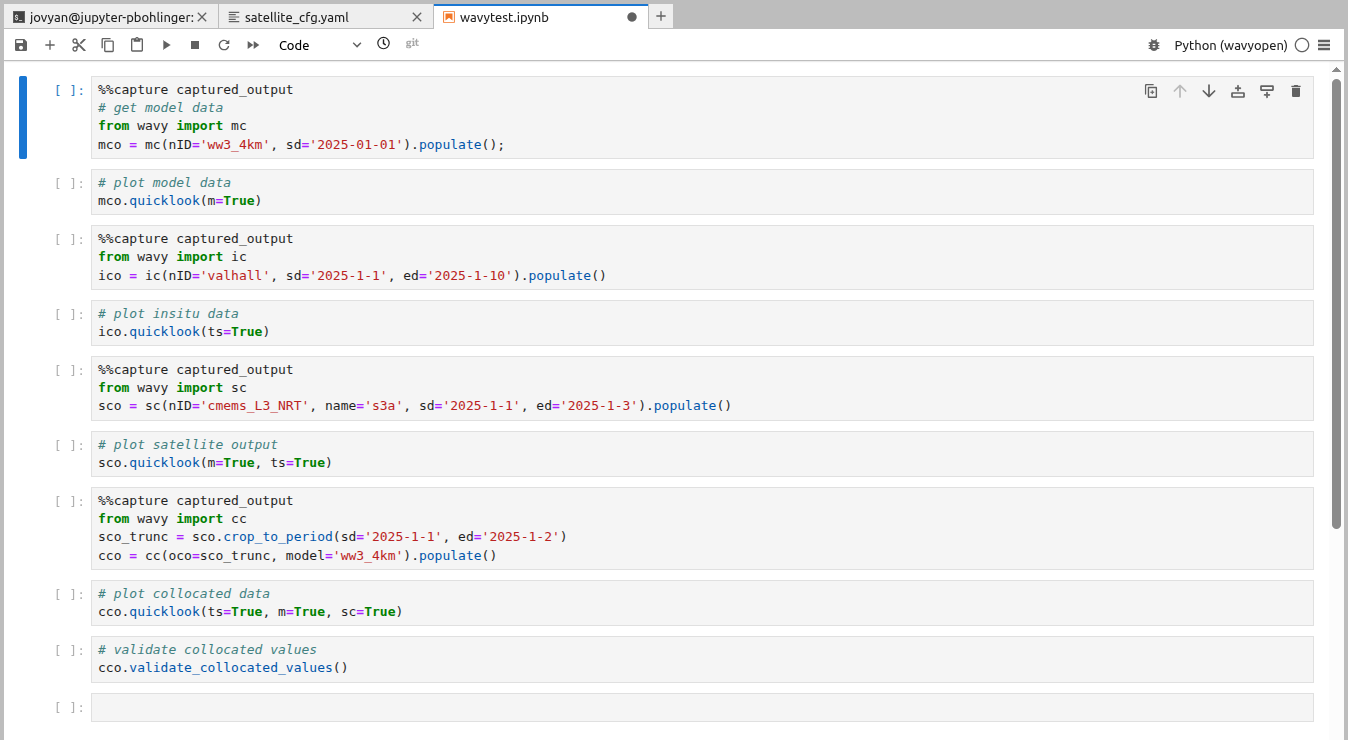
In the Jupyter notebook on WEkEO it may be beneficial to tune down the quite verbose output from wavy starting the processing cells with:
%%capture captured_output
Note
For some reason on WEkEO the wavyopen conda environment looses its name and you cannot activate simply by conda activate wavyopen. In this case please query the conda environments and activate the correct one without a name like: